

How to Create ZATCA-Compliant Invoices and Credit Notes in Invent ERP?
How to Create ZATCA-Compliant Invoices and Credit Notes in Invent ERP?
Creating Invoices and Credit Notes in Invent ERP is simple and fully integrated with ZATCA e-invoicing regulations in Saudi Arabia. Once your company setup, journal onboarding, and customer information are correctly configured, you can start issuing invoices that are automatically validated and submitted to ZATCA.
Step-by-Step Process
Creating an Invoice
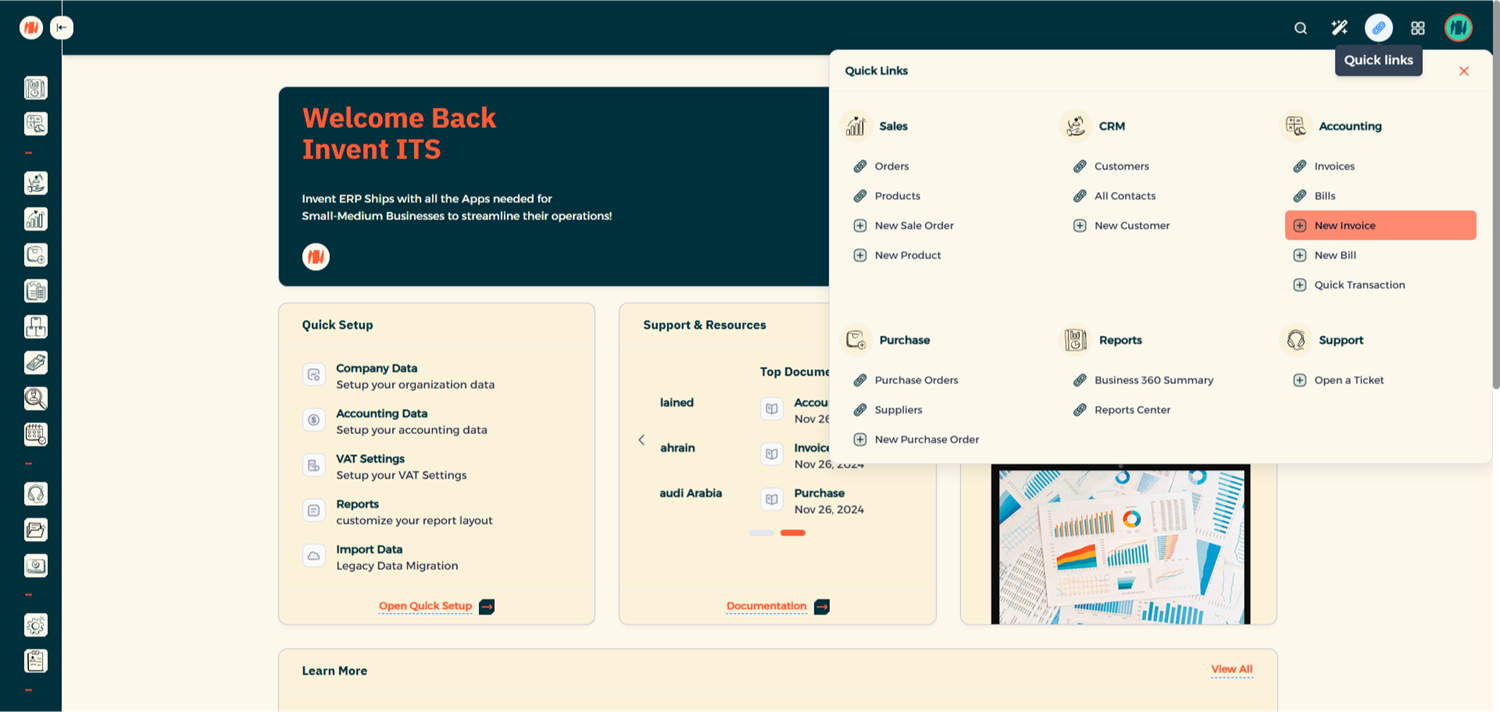
Step 1: Open the New Invoice Form
From Quick Links, click New Invoice.
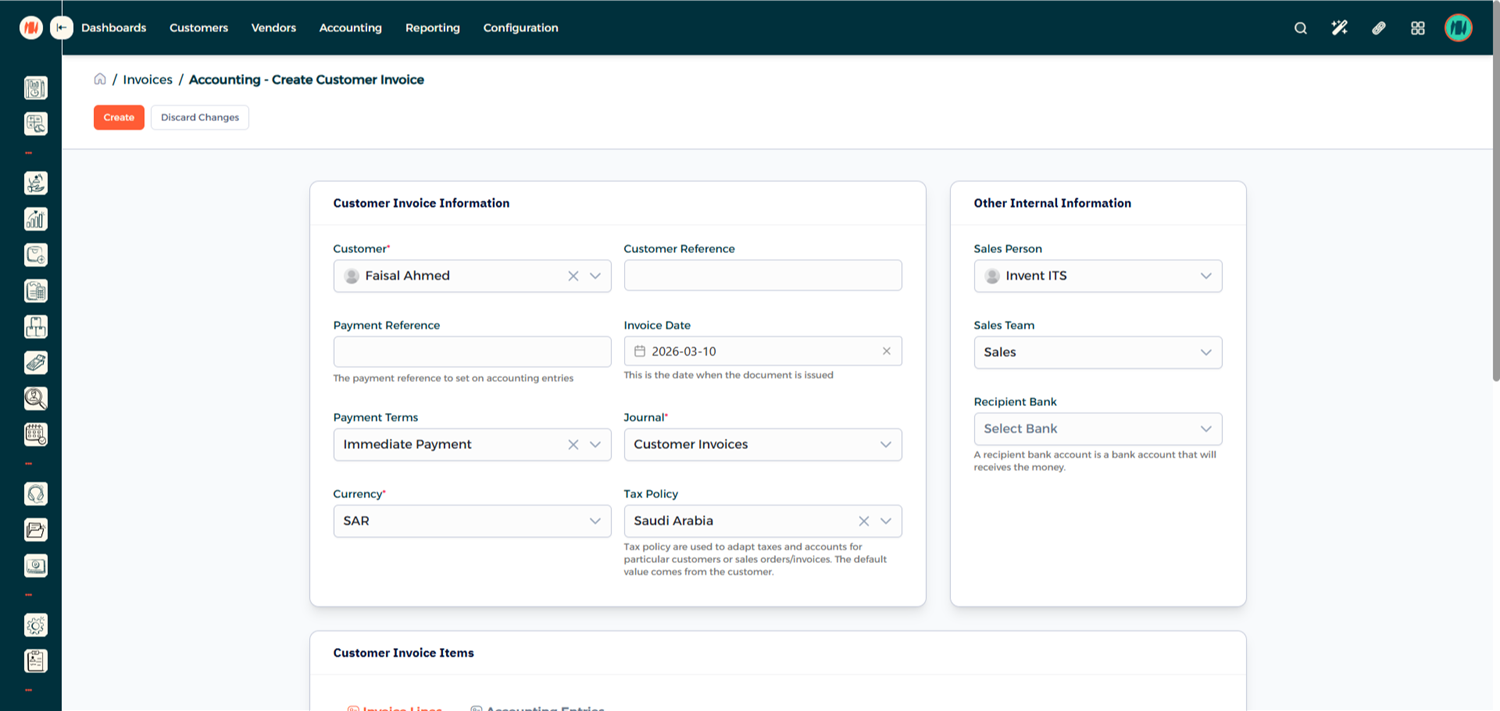
Step 2: Add Invoice Details
Add Customer Invoice Information.
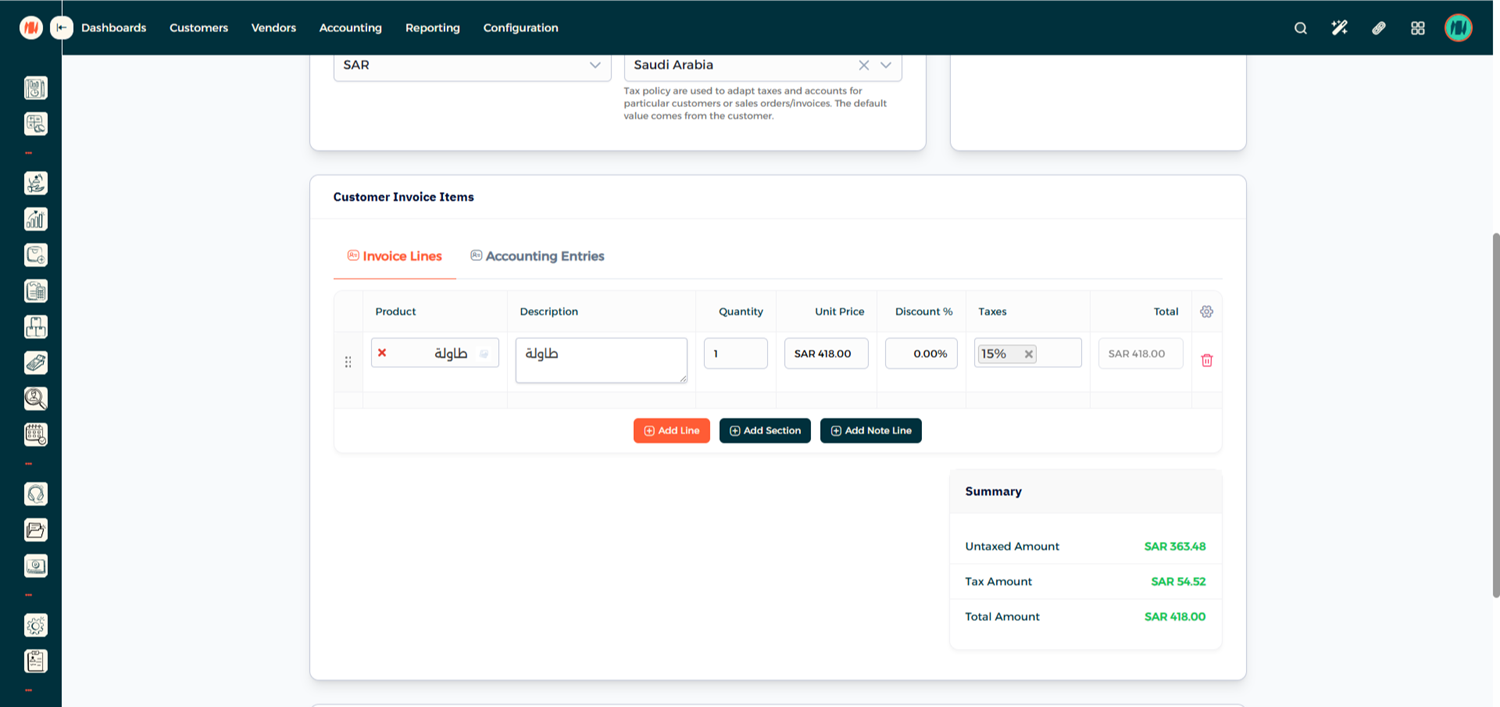
Add Customer Invoice Items
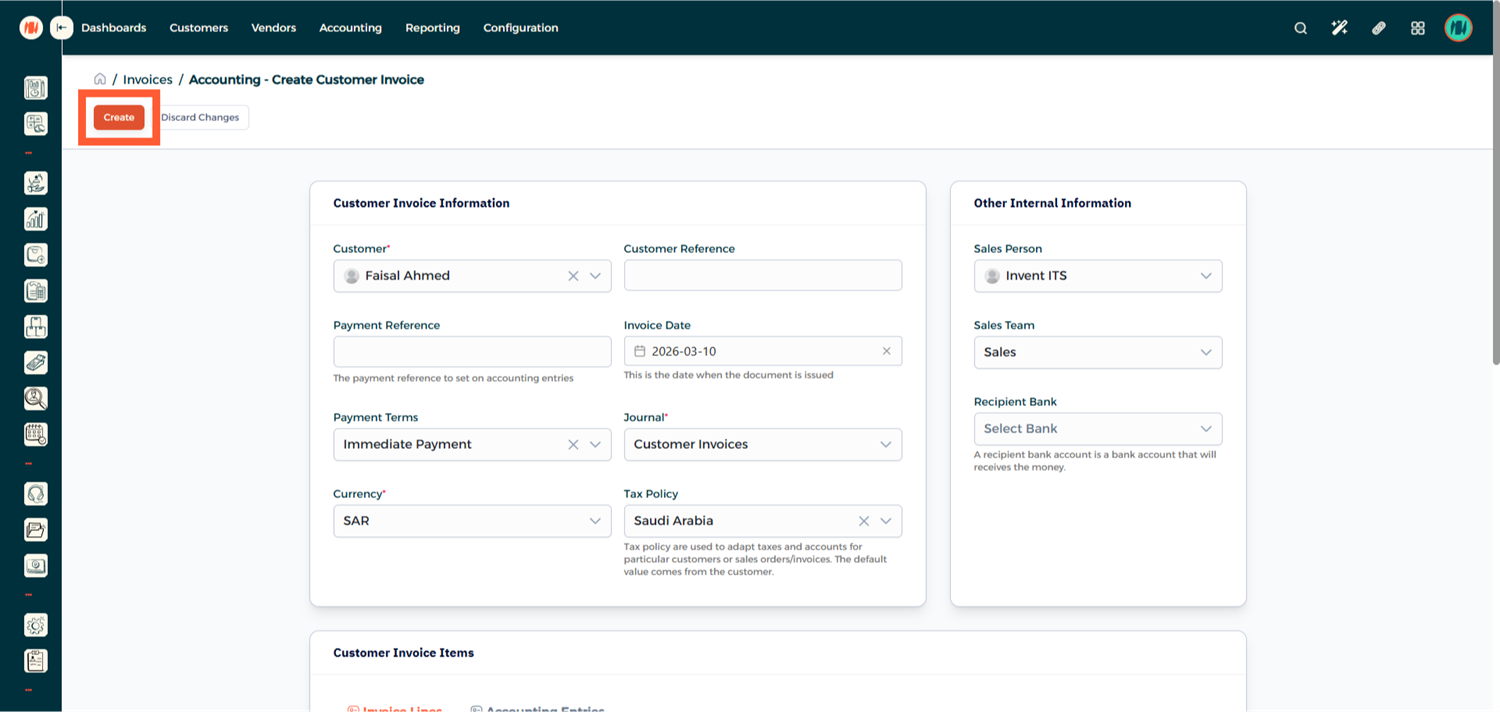
If everything looks correct, click Create.
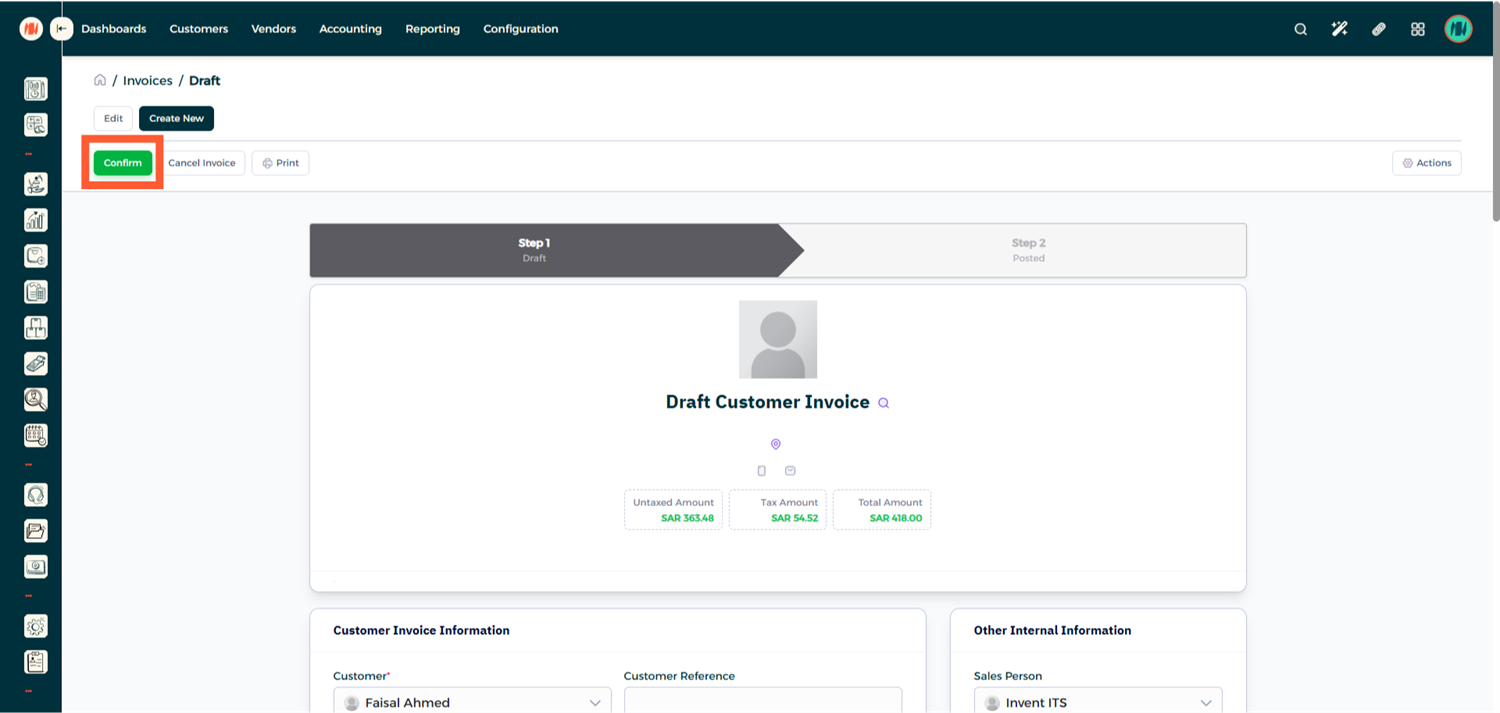
Step 3: Review and Confirm the Invoice
Before submitting the invoice, carefully review all information. Once you confirm that everything is correct, click Confirm.
Step 4: Check the ZATCA Status
After confirmation, the system will automatically submit the invoice to ZATCA.
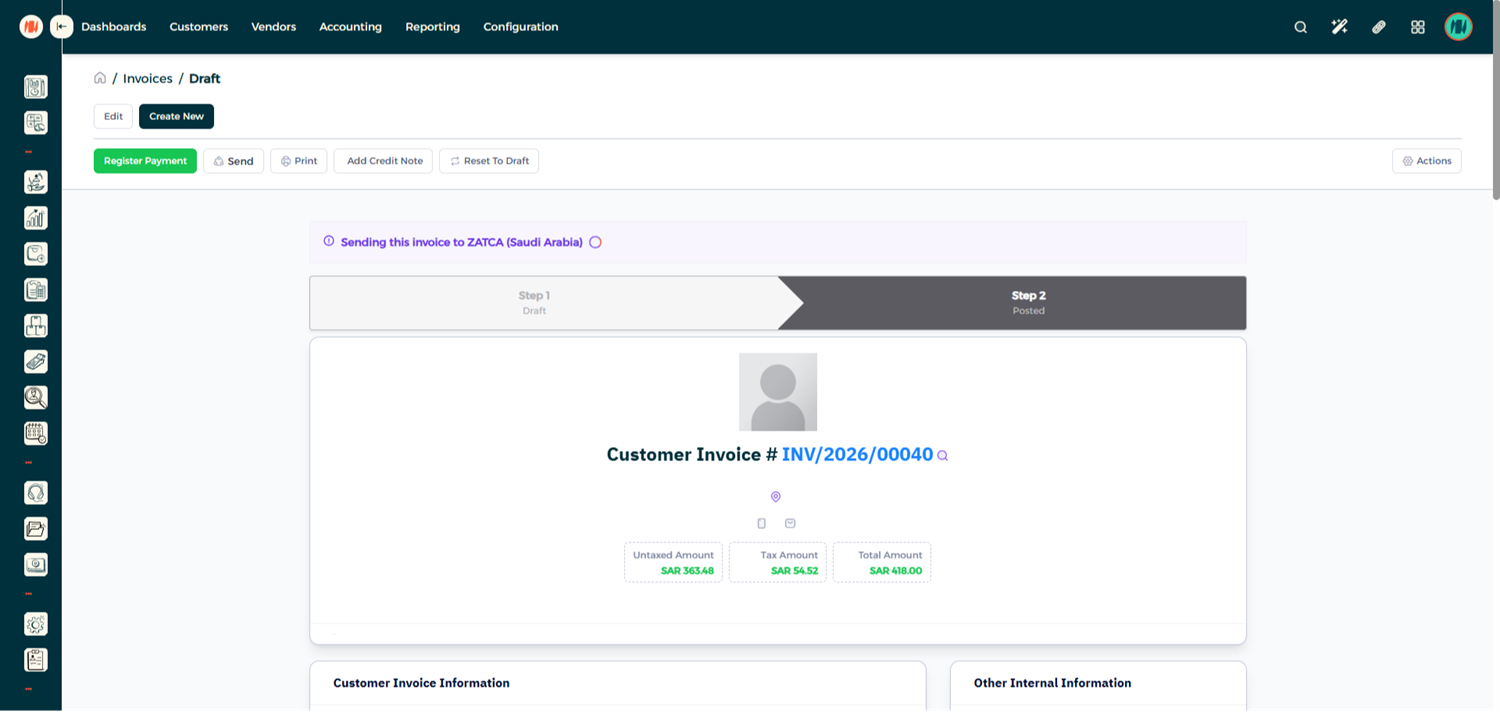
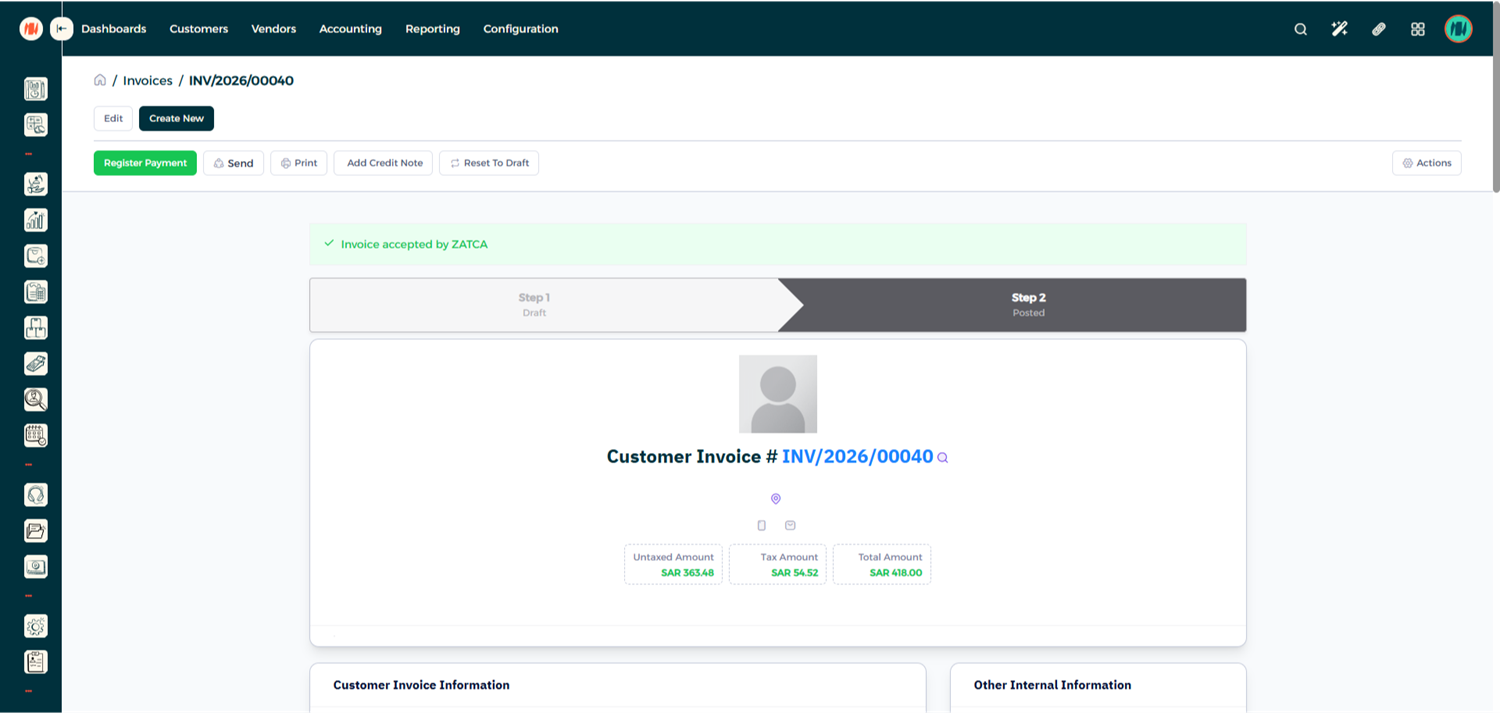
Within a few seconds, the system will return the invoice status. The invoice can have one of the following statuses:
-
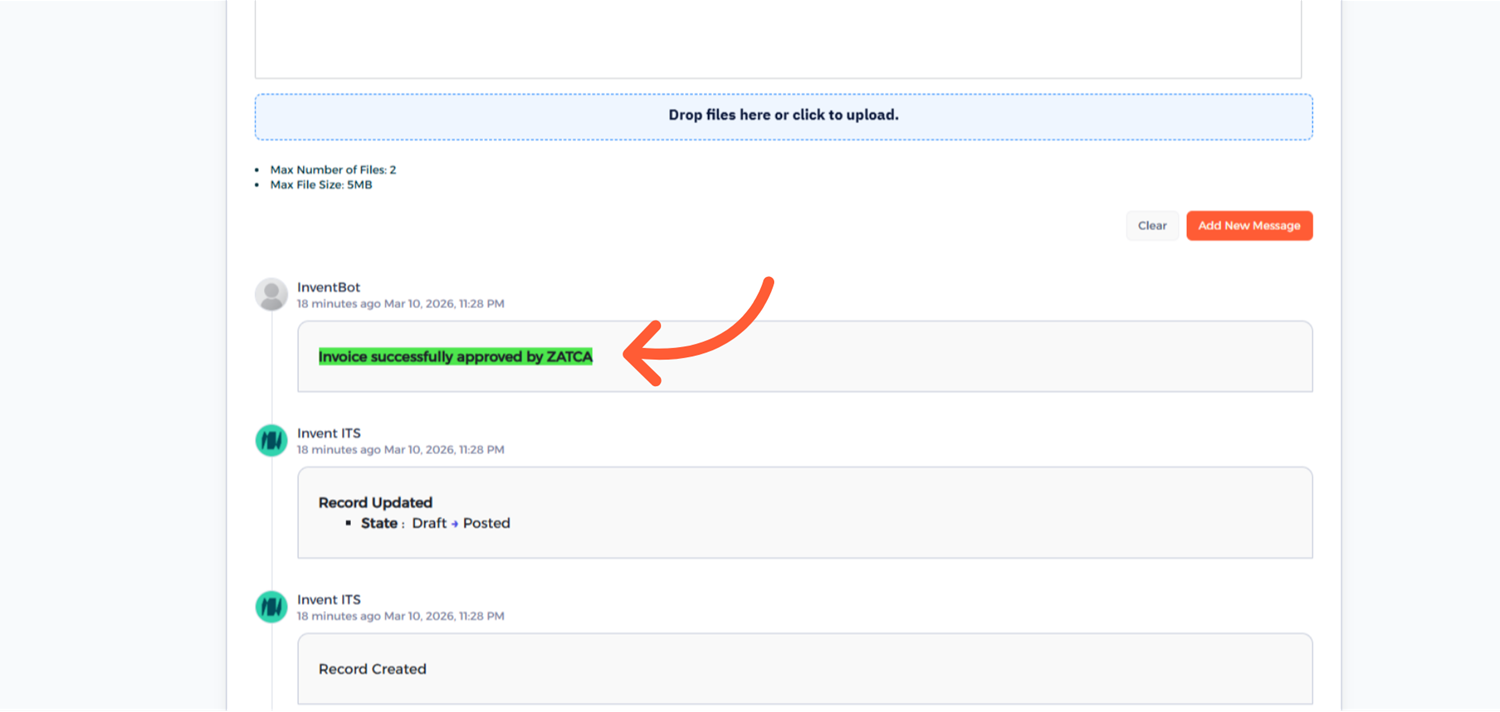
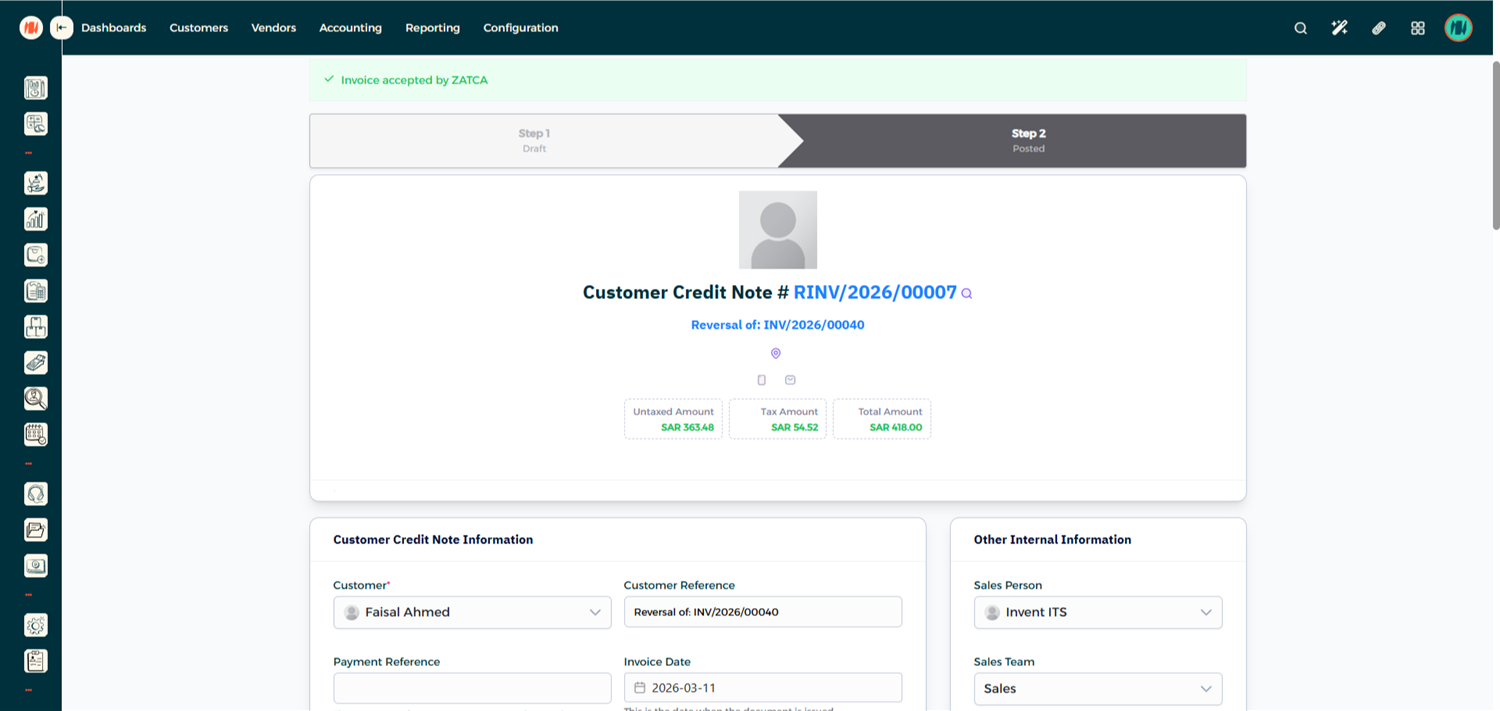
Accepted – The invoice has been successfully approved by ZATCA.
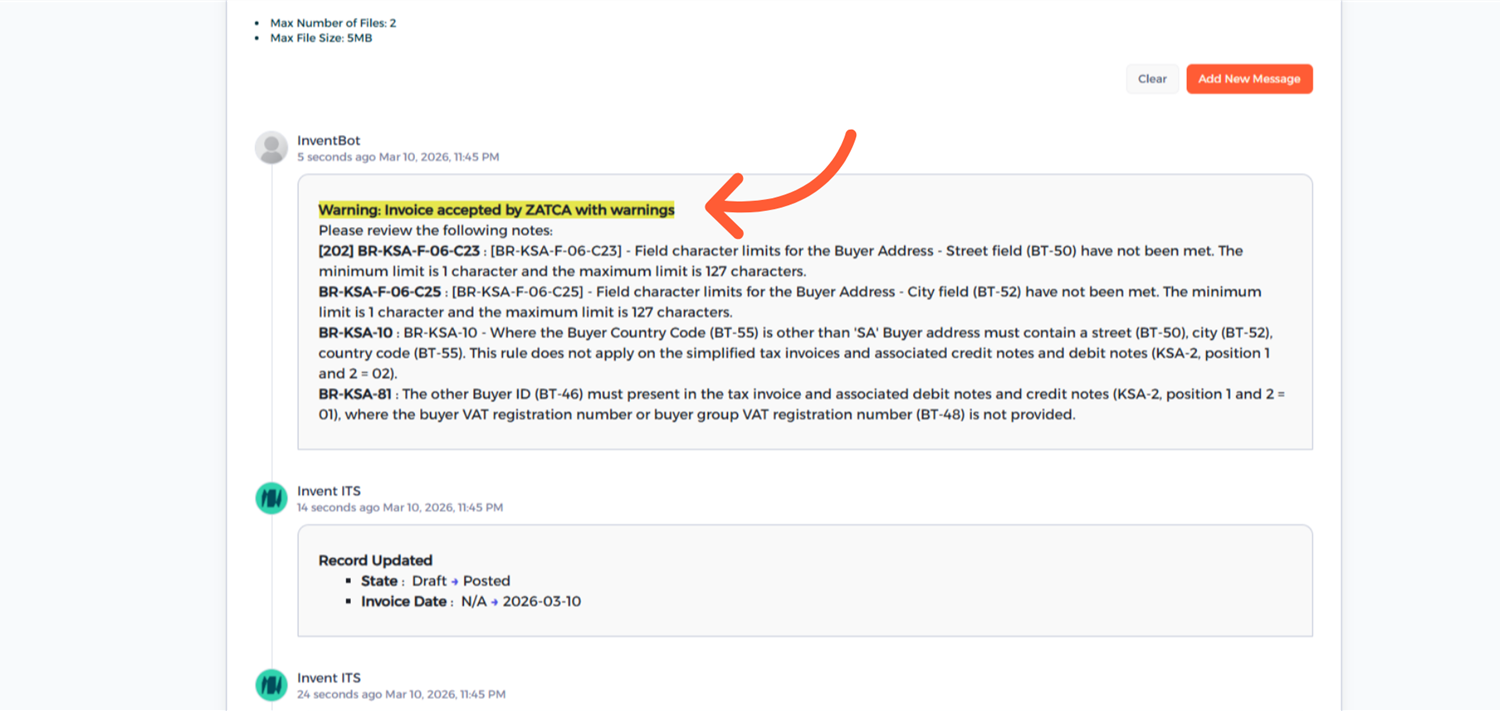
- Accepted with Warning – The invoice is accepted but contains a warning that should be reviewed.
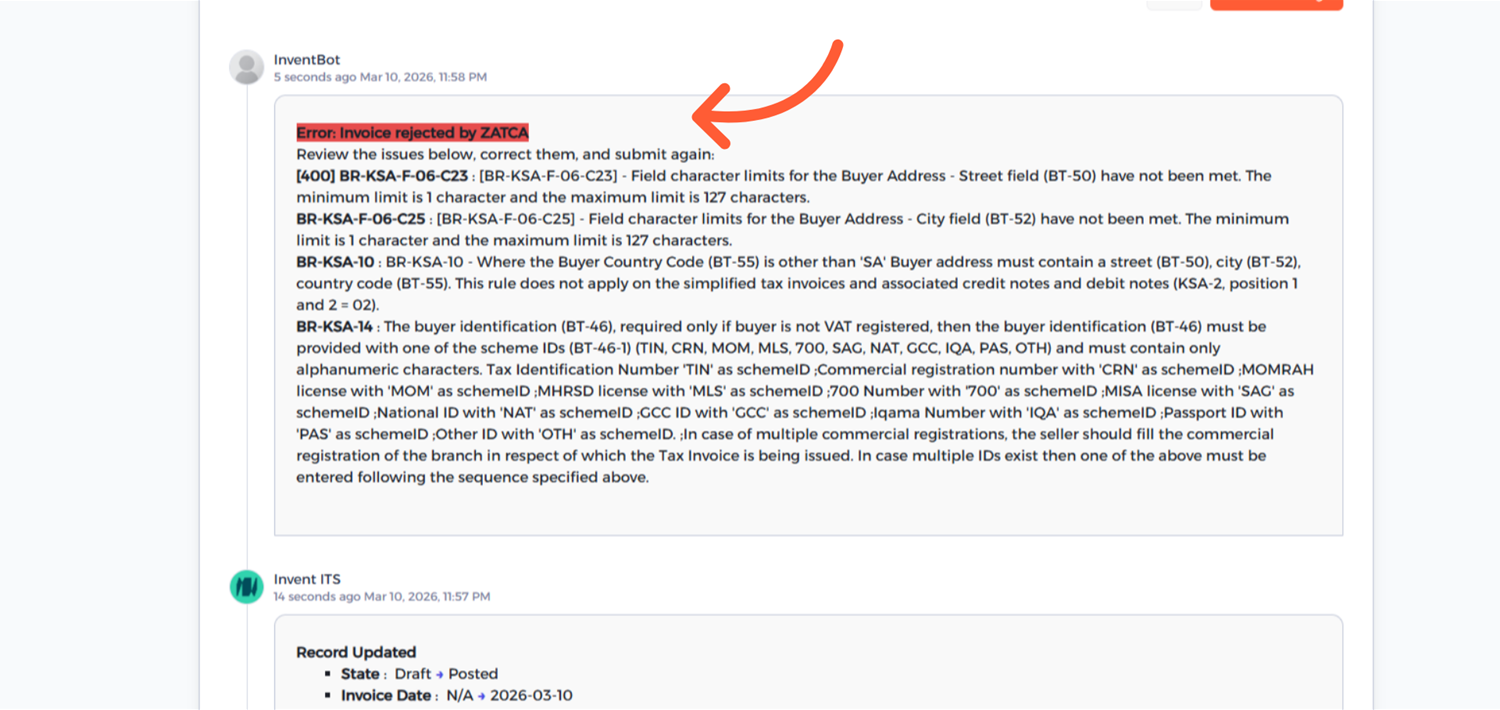
- Rejected – The invoice did not pass validation and must be corrected before resubmission.
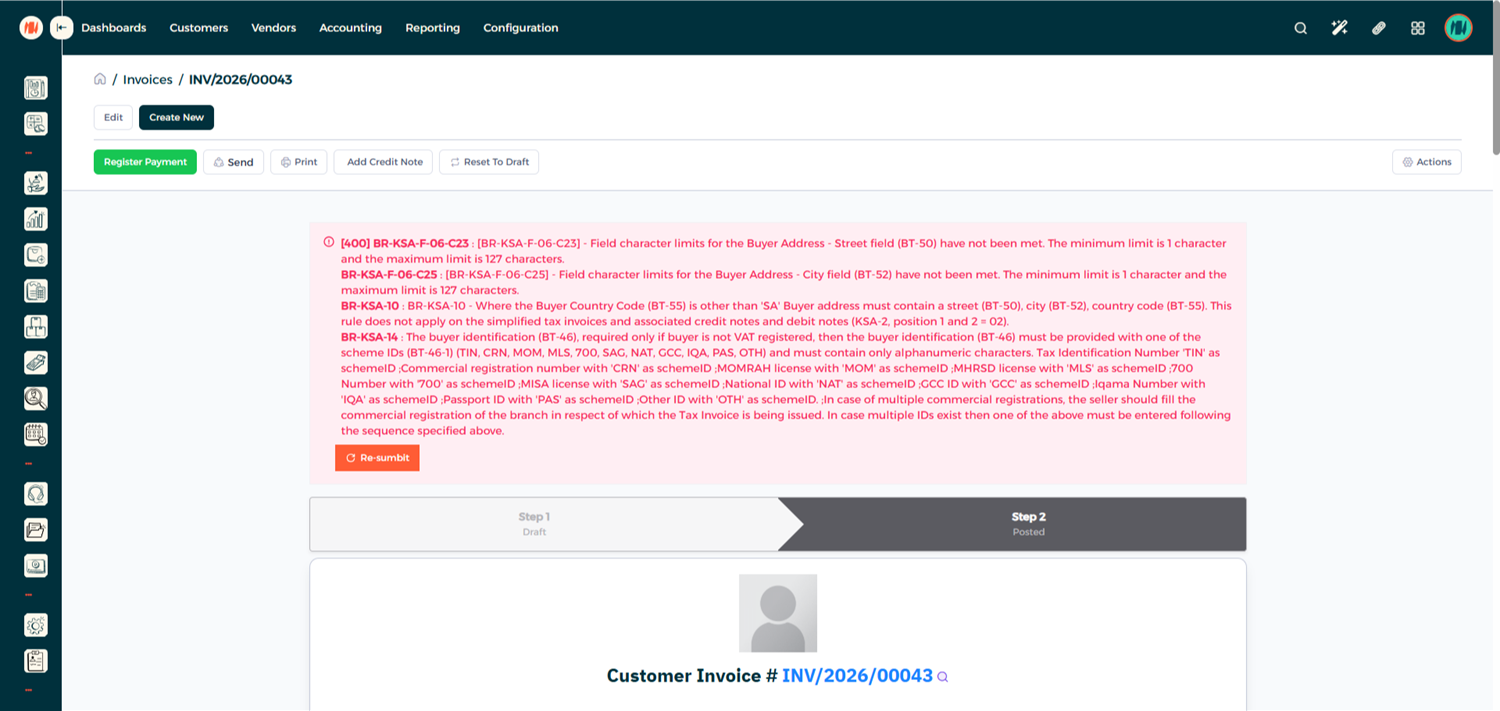
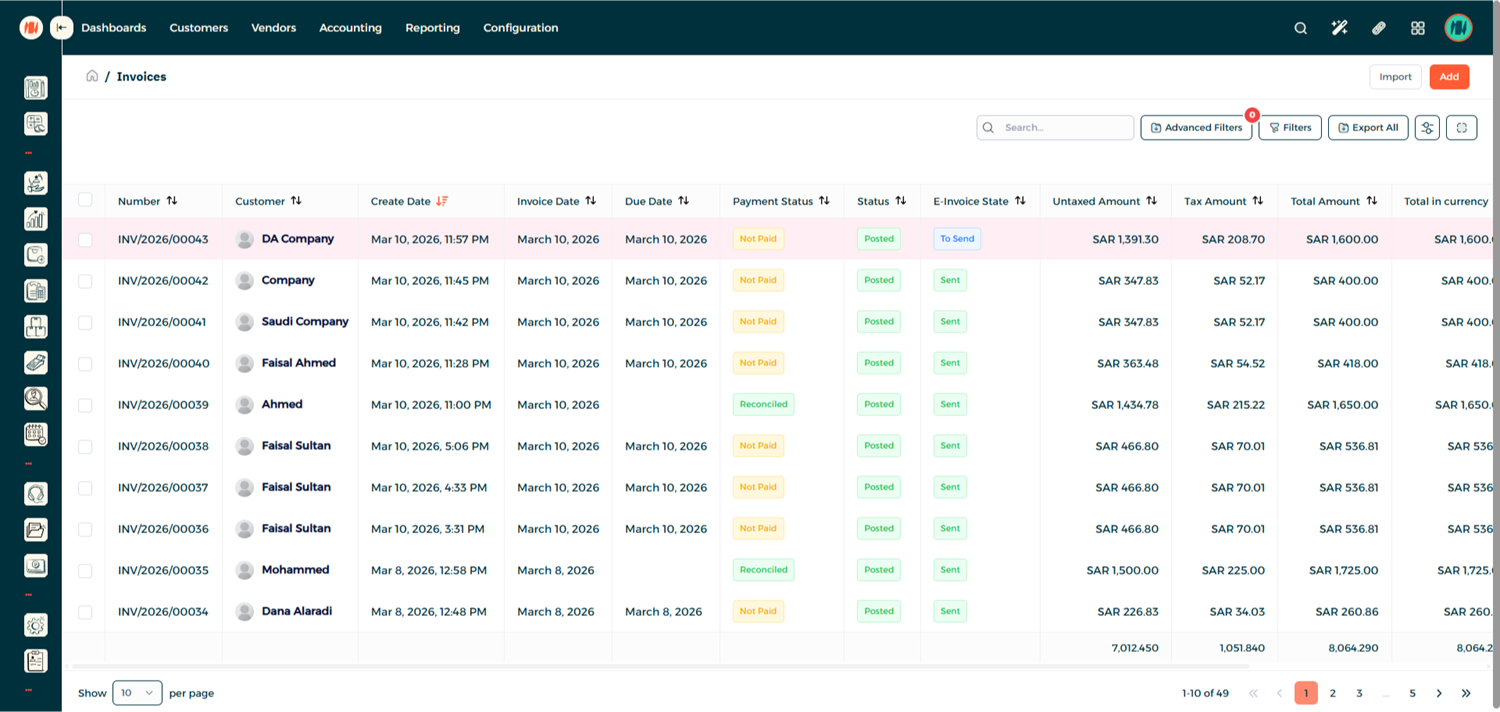
You can also view all invoices in the Invoice List, where any rejected invoices are clearly highlighted in red.
Creating a Credit Note
Step 1: Open the Original Invoice
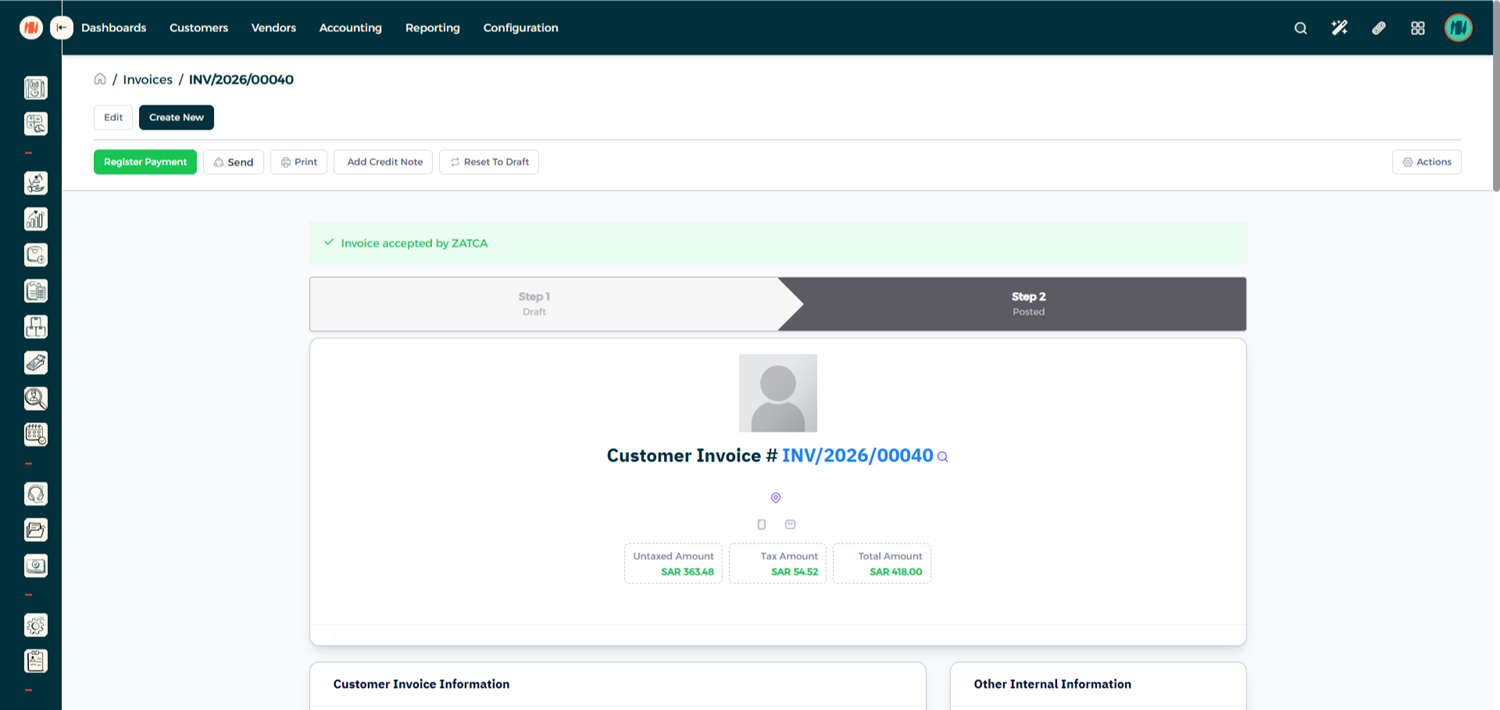
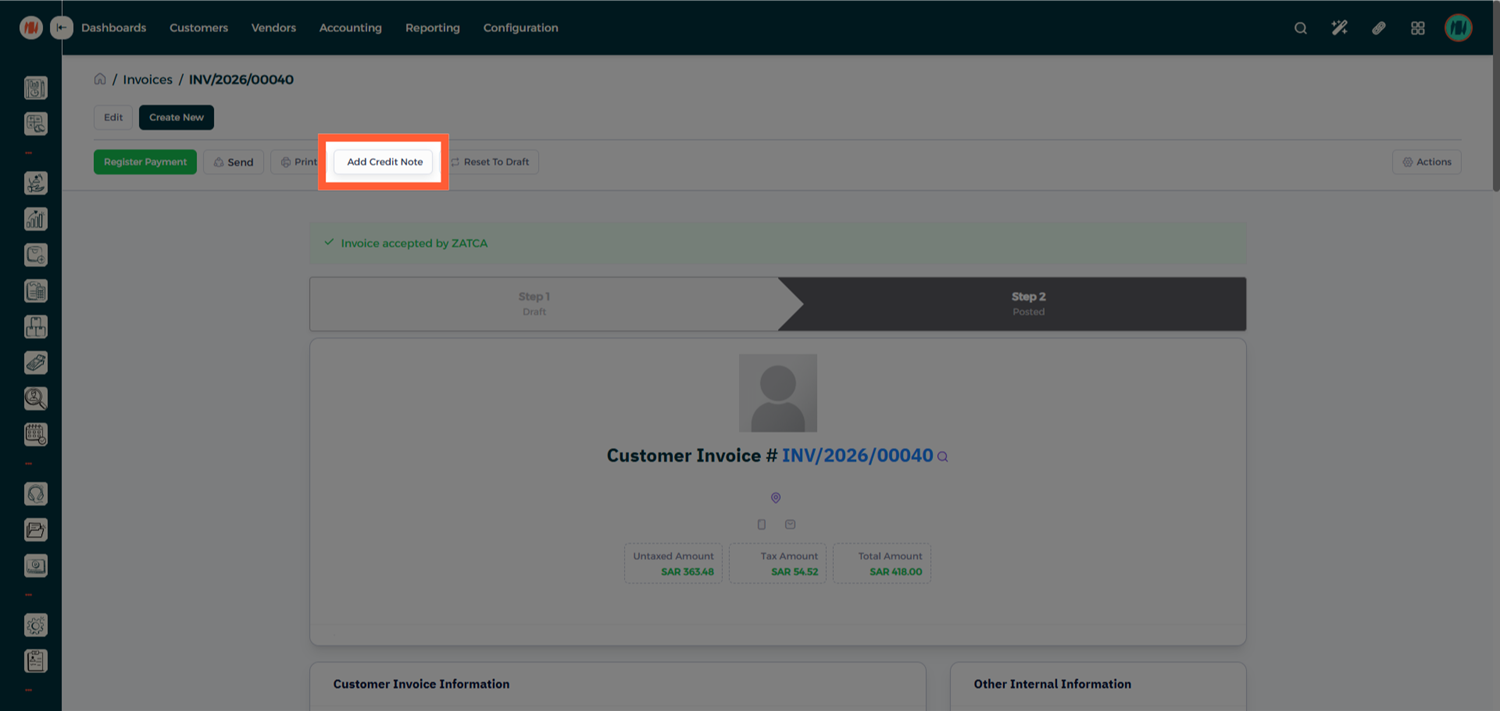
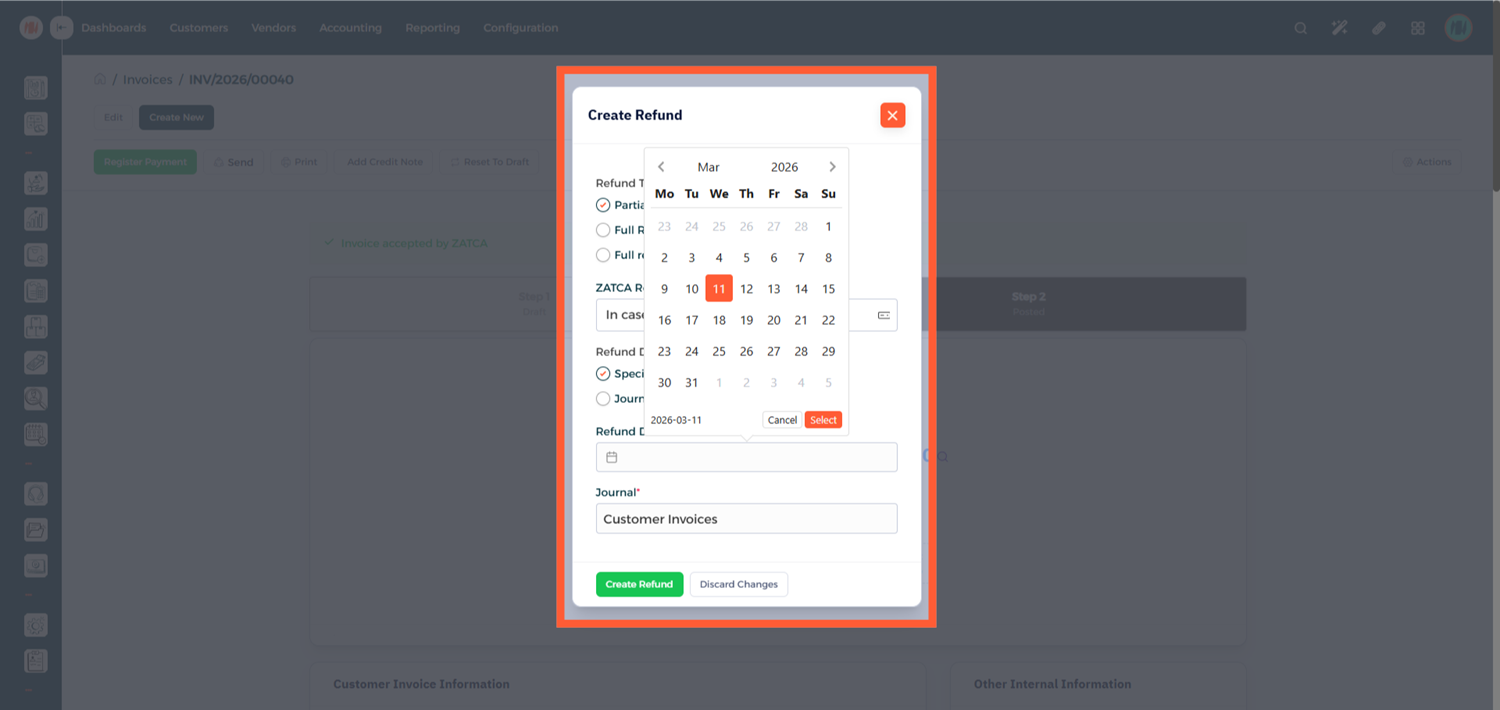
Step 2: Enter Credit Note Details
Fill in the required credit note information.
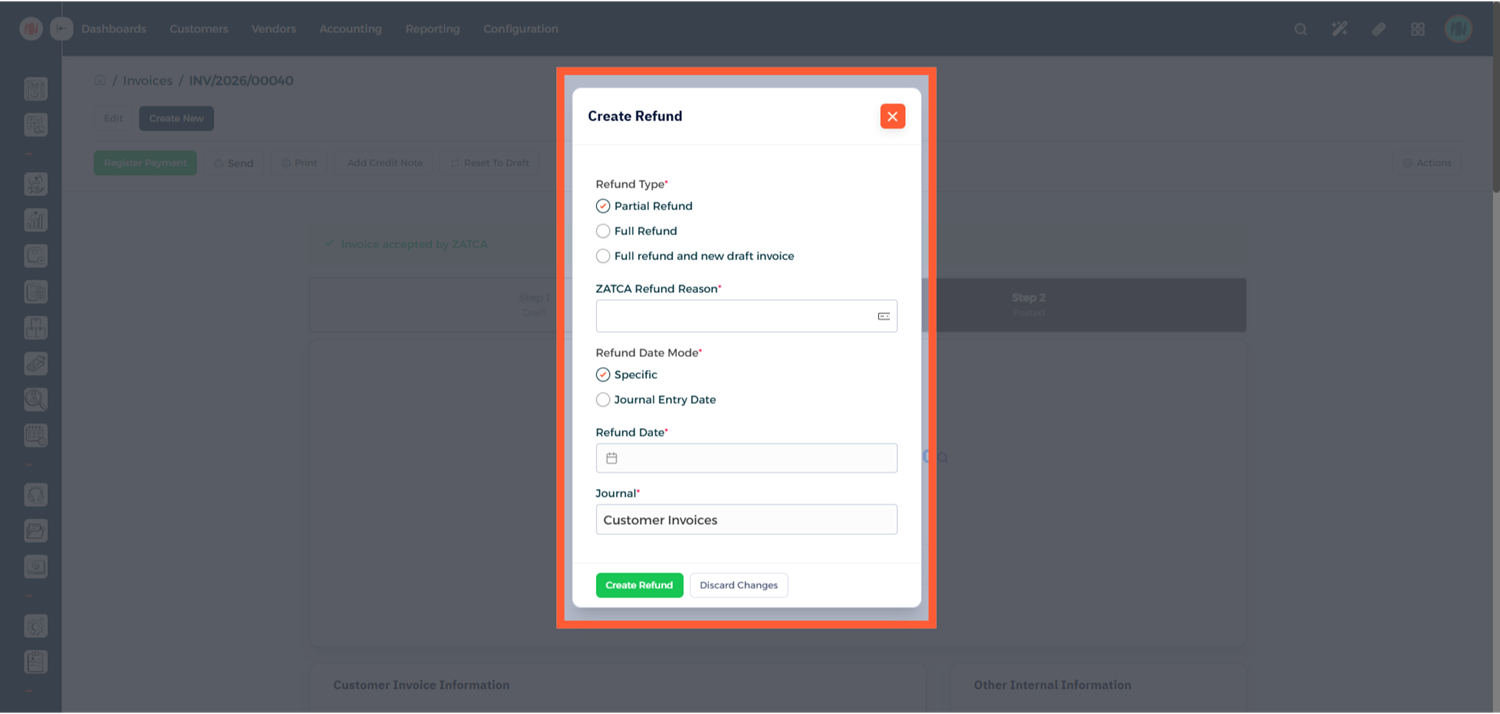
Select the appropriate ZATCA predefined refund reason.
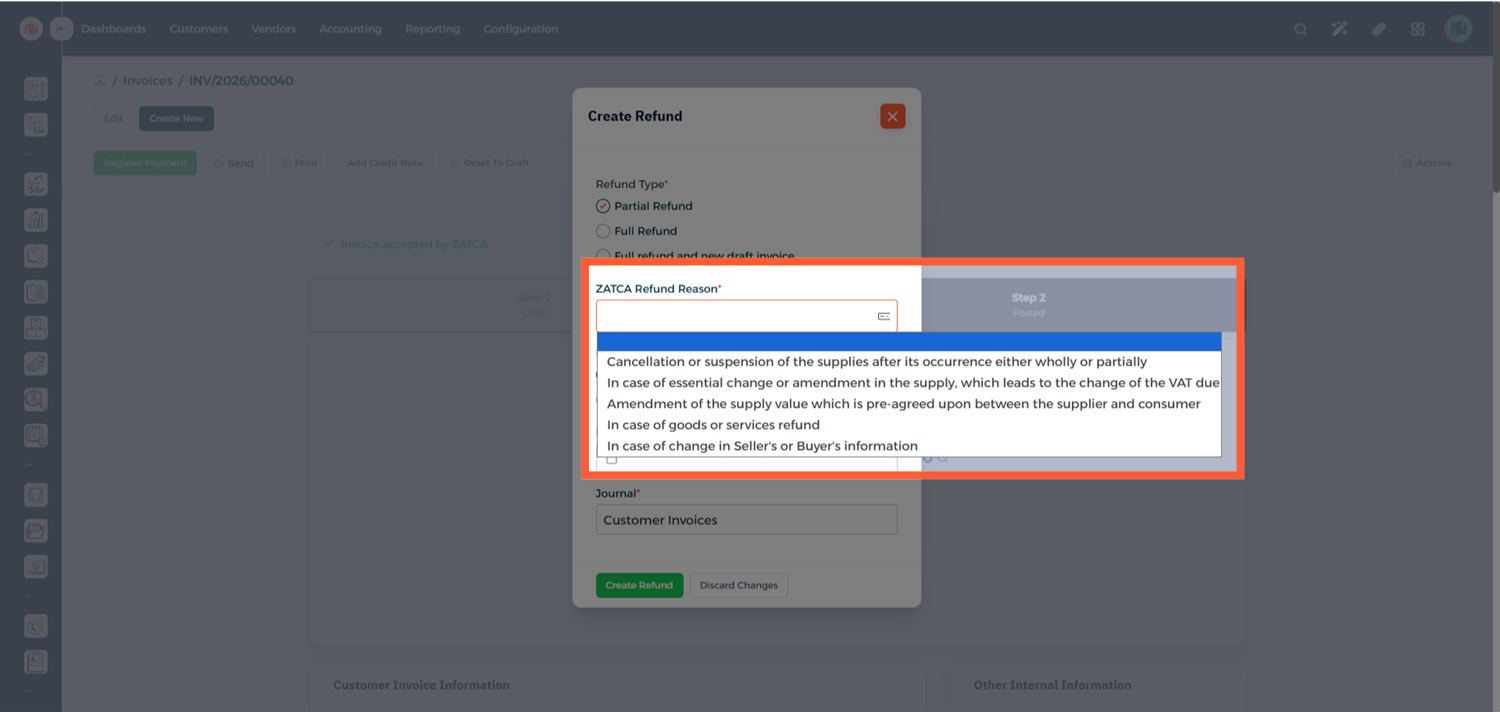
Enter the Refund Date and Create Refund.
Step 3: Review and Confirm the Credit Note
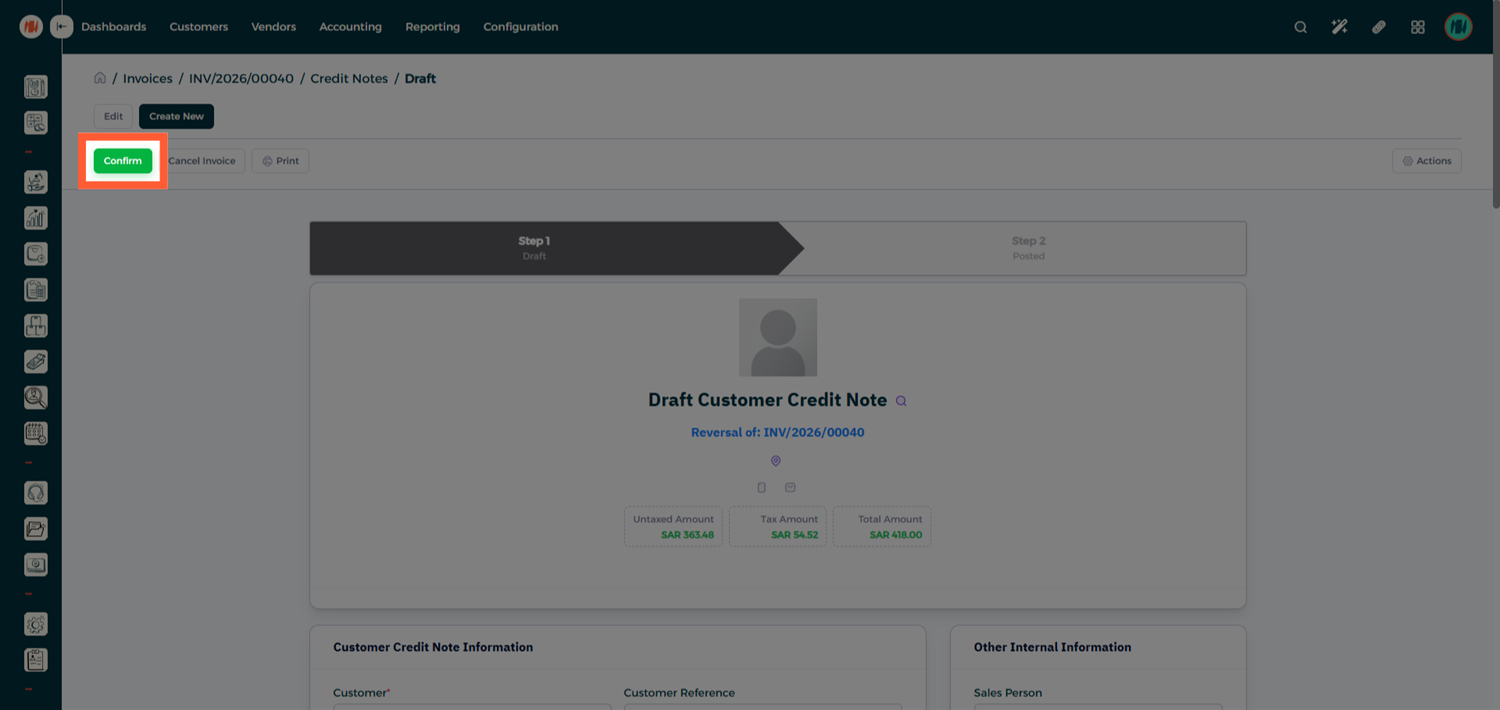
The credit note will be created and will initially appear in Draft mode. Carefully review the credit note details. If everything looks correct, click Confirm.
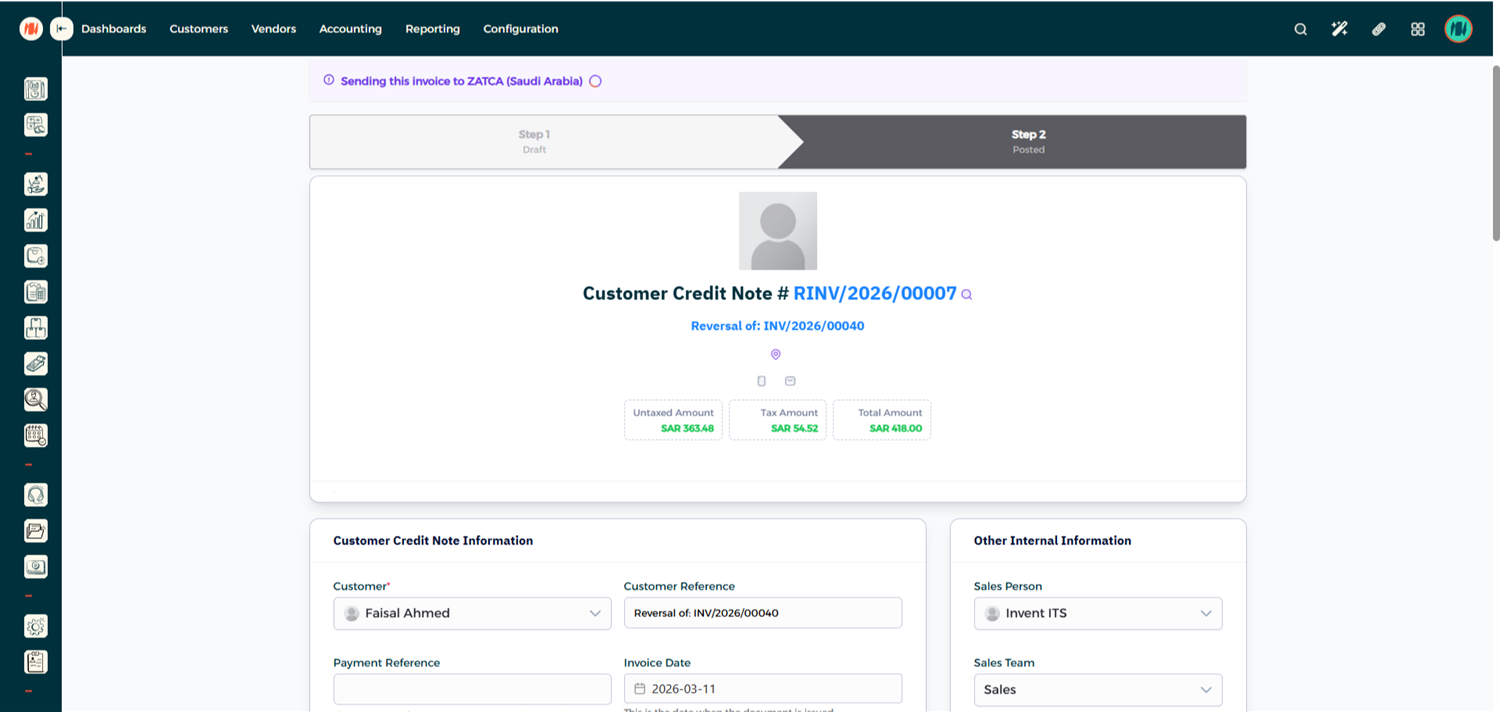
Step 4: Check the Credit Note Status
Within seconds, the system will return the validation result.
Notes & Tips
-
Always review invoices and credit notes while they are in Draft mode before confirming them.
-
If an invoice is rejected, check the error message and correct the issue before resubmitting.
-
Use ZATCA predefined refund reasons when creating credit notes to maintain compliance.
-
All confirmed invoices and credit notes are automatically submitted to ZATCA through Invent ERP.